
Download and Install LibreOffice 7.2 for Free in 2022
- 01/06/2022 09:29am
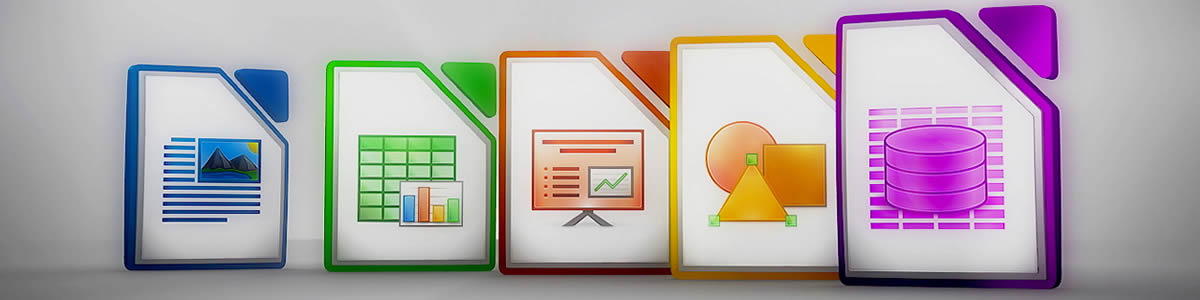
LibreOffice 7.2 is a powerful and free office suite that you can download and install for free in 2022. Its clear interface and advanced tools unleash your creativity and enhance your productivity. LibreOffice includes several applications that make it the most advanced Free & Open Source office suite on the market: Writer for word processing, Calc for spreadsheets, Impress for presentations, Draw for drawing and diagrams, Base for database management, and Math for editing mathematical formulas.
To download the latest version, start by visiting the download page of the LibreOffice foundation.
This guide explains the installation process step by step. It also clarifies the main choices shown during setup, such as the installation type, language packs, dictionaries, Microsoft Office document association, and the desktop shortcut.
Installation Steps
Installation Steps
You do not need to uninstall a previous version of LibreOffice. If you have an existing installation of LibreOffice, all your preferences will be preserved and this old installation will simply be overwritten.
This is useful if you already use LibreOffice and want to keep your usual settings. The installer updates the existing installation while keeping preferences already stored on the computer.
1. Download the LibreOffice Installer
1. Download the LibreOffice Installer.
Download and save the installer in a directory of your choice, such as your desktop. Navigate to the chosen directory and double-click on the installer. A welcome dialog will open, informing you that the installation process is about to begin.
Click "Next".
Choosing a simple location, such as the desktop, makes the installer easy to find. Once the file is downloaded, opening it launches the setup wizard and starts the installation of LibreOffice 7.2.
2. Enter your name and organization
2. Enter your name and organization. A dialog box will prompt you to enter your name and the name of your organization. This is completely optional. Fill in your name if you wish or leave the field blank. You can also choose whether all users on this computer should have access to this installation of LibreOffice (this is the default choice). Make your selection.
When you are ready, press "Next".
This step does not prevent the installation if you leave the optional fields empty. The choice about access for all users simply determines whether LibreOffice is available to every account on the computer or only to the current user, according to the option selected during setup.
3. Choose the desired installation type
3. Choose the desired installation type:
Another dialog will open, giving you the choice between a default installation or if you want a specific location and components. If you want a default installation, click "Next". If you want to make specific choices, click "Custom" and then "Next".
The default installation is the simplest option. It installs LibreOffice with the standard components. The custom installation is useful when you want to select a specific installation folder or choose which components, filters, language packs, dictionaries, or extensions to install.
4. Choose components for a custom installation
4. If you desire a custom installation, you will now choose the components.
The components can be modules, additional filters, as well as language packs. In fact, you can choose the interface language to install. English and the language of your operating system are selected by default. You can select the ones you need. Similarly, all dictionaries are selected by default. You will likely want to select only those you need. You can also deselect extensions you do not need. Make your selections and press "Next".
This screen lets you adapt LibreOffice to your actual use. For example, language packs define the interface languages available, while dictionaries are useful for spelling support in documents. Additional filters help LibreOffice handle different document formats when they are selected during installation.
5. Open Microsoft Office documents by default
5. Inform LibreOffice if you would like it to open Microsoft Office documents by default.
Another dialog opens asking you to choose whether Microsoft Office documents should be opened with LibreOffice. By default, this feature is not enabled. If you want LibreOffice to open Microsoft Office documents in the future, check the three boxes.
This option controls file association. If you activate it, Microsoft Office documents will open with LibreOffice when you double-click them. If you leave the boxes unchecked, the default behavior of those document types remains unchanged.
6. Create a desktop shortcut
6. Create a shortcut on your desktop and you are ready.
Another dialog opens asking if a shortcut to open LibreOffice should be placed on your desktop. The default option is to create this shortcut. Make a choice and then click "Install".
A desktop shortcut gives you quick access to the LibreOffice start center. From there, you can open Writer, Calc, Impress, Draw, Base, or Math, depending on the type of document you want to create or edit.
7. LibreOffice installs
7. LibreOffice installs:
When the installation process is completed, a final dialog opens to inform you that LibreOffice is now installed. Press "Finish".
After you click "Install", the setup wizard copies the selected components and applies the choices made in the previous steps. When the final dialog appears, the installation process is complete.
8. LibreOffice is ready
8. LibreOffice is ready!
Enjoy using it.
You can now use the applications included in LibreOffice 7.2 for everyday office tasks:
- Writer for creating and editing text documents.
- Calc for working with spreadsheets.
- Impress for preparing presentations.
- Draw for drawings and diagrams.
- Base for database management.
- Math for editing mathematical formulas.
LibreOffice 7.2 installation summary
| Step | What to do |
|---|---|
| Download | Save the LibreOffice installer from the download page. |
| Start setup | Double-click the installer and click "Next". |
| User information | Enter optional name and organization details or leave them blank. |
| Installation type | Choose the default installation or a custom installation. |
| Components | Select modules, filters, language packs, dictionaries, and extensions if using Custom. |
| File association | Choose whether LibreOffice should open Microsoft Office documents by default. |
| Shortcut | Decide whether to create a desktop shortcut, then click "Install". |
| Finish | Click "Finish" when the installation is complete. |
Frequently asked questions about installing LibreOffice 7.2
Do I need to uninstall a previous version of LibreOffice?
No. The article explains that you do not need to uninstall a previous version. Your preferences will be preserved, and the old installation will simply be overwritten.
Can I choose which LibreOffice components to install?
Yes. If you select "Custom" during setup, you can choose components such as modules, additional filters, language packs, dictionaries, and extensions.
Can LibreOffice open Microsoft Office documents by default?
Yes. During installation, a dialog asks whether Microsoft Office documents should be opened with LibreOffice. This feature is not enabled by default, so you need to check the boxes if you want to use it.
Is the name and organization step required?
No. Entering your name and organization is optional. You can fill in the fields or leave them blank before continuing.
What applications are included in LibreOffice 7.2?
LibreOffice 7.2 includes Writer, Calc, Impress, Draw, Base, and Math for word processing, spreadsheets, presentations, drawings and diagrams, database management, and mathematical formulas.
Conclusion
Downloading and installing LibreOffice 7.2 is a straightforward process. Use the official download page already provided, run the installer, follow each setup dialog, choose the options that match your needs, and click "Finish" when the installation is complete. LibreOffice is then ready for Writer, Calc, Impress, Draw, Base, and Math.

