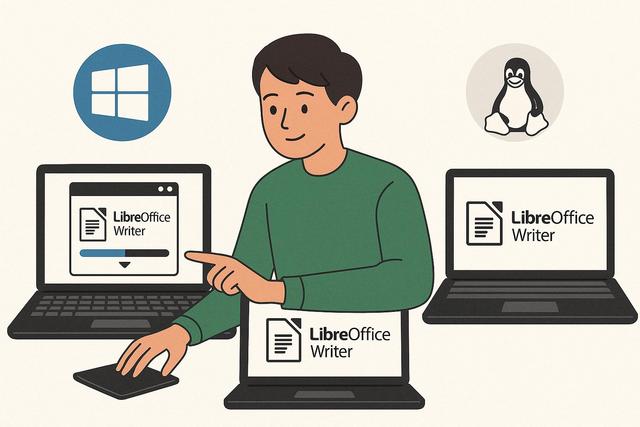
How to Install LibreOffice Writer for Free on Windows, Mac, and Linux
LibreOffice Writer is a popular, free, and open-source word processor that is part of the LibreOffice suite. It is widely used as an alternative to Microsoft Word, offering a comparable range of features to meet all your word processing needs. In this article, we will guide you through the steps to install LibreOffice Writer for free on Windows, Mac, and Linux operating systems. Whether you are a beginner or an experienced user, these clear instructions will make your installation process straightforward.
This guide focuses on the essential installation steps for each system. It also explains what you can do with LibreOffice Writer once it is installed, such as creating documents, editing text files, using layout tools, applying styles, and saving files in common document formats.
Why Choose LibreOffice Writer?
Before diving into the installation process, let's take a moment to explore why LibreOffice Writer is a wise choice for many users around the world.
-
Free and Open Source: LibreOffice Writer is completely free, with no hidden fees or subscriptions. Furthermore, being open source allows developers to modify and enhance the software, ensuring its security and continuous evolution.
-
Compatibility: It offers wide compatibility with various file formats, including those of Microsoft Word (.doc, .docx) and other text formats. You can easily open, edit, and save documents in the format that suits you best.
-
Rich Features: With advanced layout tools, styling options, autocorrect features, and built-in libraries, LibreOffice Writer is well-suited to projects of any scale.
-
Active Community: With a vast community behind it, there are always forums and resources available for assistance and tips on using the software.
LibreOffice Writer can be used for many everyday writing tasks. You can prepare letters, reports, simple forms, essays, notes, and longer documents. Its styling options help keep headings, paragraphs, and lists consistent throughout a file. Autocorrect features can also help reduce common typing mistakes while you write.
Because LibreOffice Writer supports Microsoft Word formats such as .doc and .docx, it is useful when you need to exchange documents with other people. You can open existing files, edit them, and save them in a format that fits your needs.
LibreOffice Writer Installation Overview
The installation method depends on your operating system. Windows uses an installer file, macOS uses a DMG file, and Ubuntu Linux can install LibreOffice from the terminal. The table below summarizes the main approach for each platform mentioned in this guide.
| Operating system | Main installation method | How to launch LibreOffice Writer |
|---|---|---|
| Windows | Download and run the LibreOffice installer | Start menu or desktop icon |
| Mac | Open the DMG file and move LibreOffice to Applications | Applications folder |
| Linux Ubuntu | Use the terminal command sudo apt install libreoffice |
Applications menu |
Installing LibreOffice Writer on Windows
Installing LibreOffice Writer on Windows is a straightforward process. Follow these steps to start your first session with LibreOffice Writer.
-
Download LibreOffice: Go to the official LibreOffice site (www.libreoffice.org). Make sure to download the latest version for Windows, which is usually offered automatically on the homepage.
-
Run the Installer: Once the installation file is downloaded, locate it in your downloads folder and double-click to launch the installer. A user account control window may appear asking for permission to continue. Click "Yes."
-
Follow Installation Instructions: The installation wizard will guide you through the process. You can choose a standard installation for a default setup or a custom installation if you wish to select specific components to install.
-
Complete the Installation: After selecting your installation type, click "Install." Wait while the necessary files are copied to your system.
-
Launch LibreOffice Writer: Once installed, you can run LibreOffice Writer from the Start menu or via the icon on your desktop. Enjoy your new word processing application!
On Windows, the standard installation is the easiest choice for most users because it installs the default components. The custom installation option is useful if you want to choose specific components during setup. After installation, opening LibreOffice Writer from the Start menu lets you begin creating or editing documents immediately.
Installing LibreOffice Writer on Mac
Installing LibreOffice Writer on a Mac is also quite simple. Here’s how you can do it in a few steps.
-
Download LibreOffice for Mac: Go to the LibreOffice download page. The site will automatically detect your operating system and offer the compatible version for macOS.
-
Open the DMG File: Once the download is complete, open the DMG file located in your Downloads folder. You will see a new window with the LibreOffice icon and a shortcut to the Applications folder.
-
Move LibreOffice to the Applications Folder: Drag and drop the LibreOffice icon into the Applications folder to copy the software to your Mac.
-
Allow LibreOffice to Open: The first time you open LibreOffice Writer, you may receive a security warning. Go to System Preferences > Security & Privacy, then under the "General" tab, click "Open Anyway" to allow it to run.
-
Explore LibreOffice Writer: You are now ready to use LibreOffice Writer on your Mac to create and edit your documents.
On macOS, moving LibreOffice into the Applications folder makes it available like other installed applications. If a security warning appears the first time you open it, the steps above allow LibreOffice Writer to run. You can then use it for writing, formatting, and saving documents on your Mac.
Installing LibreOffice Writer on Linux
For Linux users, the installation can vary depending on the distribution used. Below, we illustrate the process on Ubuntu, one of the most popular Linux distributions.
-
Open the Terminal: The most common method for installing applications on Ubuntu is through the terminal.
-
Update Repositories: Type the command
sudo apt updateto ensure all your repositories are up to date. -
Install LibreOffice: Use the command
sudo apt install libreofficeto install the entire LibreOffice suite, including LibreOffice Writer. The terminal will prompt you to confirm the installation. -
Launch LibreOffice Writer: Once the installation is complete, you can launch LibreOffice Writer from the applications menu by simply searching for "LibreOffice Writer."
-
Alternatives for Other Distros: If you are using another Linux distribution, such as Fedora or Arch, the process may vary slightly. Consult the relevant documentation or your distribution's community for specific instructions.
On Ubuntu, the command sudo apt update refreshes repository information before the installation. The command sudo apt install libreoffice installs the LibreOffice suite, including LibreOffice Writer. When the terminal asks for confirmation, follow the on-screen prompt to continue.
If you use another Linux distribution, the names of the tools or commands may be different. The goal remains the same: install the LibreOffice suite and then open LibreOffice Writer from the applications menu.
What You Can Do After Installing LibreOffice Writer
After installing LibreOffice Writer, you can start using it as your main word processor. The features mentioned in this guide support common document tasks, including:
- creating new text documents;
- opening and editing Microsoft Word files such as .doc and .docx;
- using layout tools to organize pages and content;
- applying styles to headings, paragraphs, and lists;
- using autocorrect features while typing;
- saving documents in the file format that suits your needs.
These tools make LibreOffice Writer suitable for both simple and more detailed writing projects. Beginners can use the default settings, while experienced users can take advantage of styling options and layout tools for larger documents.
FAQ: Installing LibreOffice Writer
Is LibreOffice Writer free to install?
Yes. LibreOffice Writer is free and open source. There are no hidden fees or subscriptions mentioned in this guide.
Can LibreOffice Writer open Microsoft Word documents?
Yes. LibreOffice Writer offers compatibility with Microsoft Word formats, including .doc and .docx, as well as other text formats.
Do I need to install the whole LibreOffice suite to use Writer?
On Ubuntu, the command shown in this guide installs the entire LibreOffice suite, including LibreOffice Writer. On Windows, the installer also offers standard and custom installation choices.
Where can I download LibreOffice Writer?
You can download LibreOffice from the official LibreOffice site, listed in this guide as www.libreoffice.org. A download link is also provided at the end of the article.
Conclusion
LibreOffice Writer is a powerful and free solution for your word processing needs, whether you are on Windows, Mac, or Linux. With its ease of installation and a rich array of features, it serves as a robust alternative to paid word processing software. Remember that the LibreOffice community is always there to support your journey, and don't hesitate to explore its forums and resources for any questions or additional assistance needs. Install LibreOffice Writer today and discover why it's the preferred choice for millions of users worldwide.
Whether you install it on Windows, macOS, or Linux, LibreOffice Writer gives you a free word processor for creating, editing, formatting, and saving documents. Follow the steps for your operating system, then open Writer to begin working with your files.
Download the latest version of LibreOffice

