Free LibreOffice Tutorials: Writer, Calc and Impress
Discover my free LibreOffice tutorials and learn how to use this open-source office suite, from basic tasks to more advanced features. Whether you're a beginner or an experienced user, you'll find practical guides, step-by-step instructions and useful examples.
Learn to create and format documents with LibreOffice Writer, manage spreadsheets and formulas with LibreOffice Calc, and design presentations with LibreOffice Impress.
My tutorials help you complete everyday tasks: write letters, create invoices, organize spreadsheets, manage inventories, perform calculations and export documents to PDF.
You'll also find tips for using LibreOffice Draw for diagrams, LibreOffice Base for databases and LibreOffice Math for mathematical formulas, along with advice on improving productivity and protecting your documents.
All Free LibreOffice Tutorials
Browse the latest tutorials and practical guides published below. Each article explains a feature, demonstrates a method or helps you solve a specific problem.
The footer in LibreOffice Writer allows you to display information at the bottom of each page. You can place a page number, author's name, date, or a confidentiality notice there.
Common Challenges with Footers
However, configuring it can sometimes be problematic. The footer may disappear, repeat when you want to edit it, or appear on the first page despite your settings.
Other users face issues with numbering or the spacing between the text and the bottom of the document.
Customizing Your Footer
Fortunately, LibreOffice Writer offers several tools to customize this area.
Guide Overview
In this guide, you will discover how to add, modify, delete, and optimize a footer in LibreOffice. You will also learn how to resolve the most common issues.
Tutorial: Create a Gantt Chart to Manage a Project with Calc
A Gantt chart with Calc is a practical way to organize project management in LibreOffice. Project management is essential for ensuring the success of any business. A commonly used tool to visualize the progress of a project is the Gantt chart. This article guides you step by step to create a Gantt chart with Calc, the spreadsheet included in the LibreOffice suite. With this tool, you can track the progress of your projects and ensure their success.
Calc lets you enter tasks, dates, durations, and progress in a spreadsheet. By organizing this information clearly, you can build a simple visual timeline that helps you follow each stage of a project.
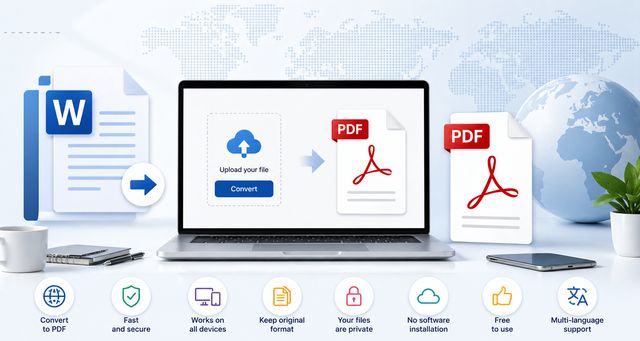
Creating a PDF with Word remains a common action, whether you are a student, employee, or freelancer. You can convert your document into a PDF in just a few clicks, without the need to install any external tools.
This guide explains how to create a PDF with Word on Windows, Mac and mobile. It also covers common problems, the main advantages of the PDF format, and a free alternative if Microsoft Word is not available.
The support for LibreOffice Markdown changes the way you work with Writer. Now you can open, edit, and export Markdown files without using an external tool. This development simplifies your daily tasks, as you save time right from the writing process.
LibreOffice has offered this feature since its recent version. Therefore, you can take advantage of a free download of LibreOffice Markdown to quickly test this new feature. This way, you stay within a single environment for writing and formatting your content.
However, it's important to understand one thing. LibreOffice does not become a pure Markdown editor. Instead, it serves as an effective bridge between quick writing and structured documents.
In practical terms, this means you can prepare plain text with Markdown syntax, then use LibreOffice Writer to review the structure, adjust the layout and export the final document. This approach is useful when you want both fast writing and a clean document output.
Building a Business Cash Flow Table with LibreOffice Calc
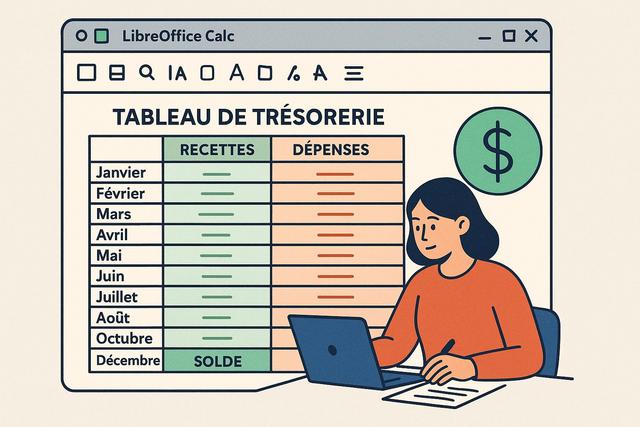
A cash flow table with LibreOffice Calc helps a business track money coming in, money going out, and the balance available over a chosen period. Cash flow management is a crucial element in ensuring the financial health of a business. Creating a cash flow table is an effective way to track cash flows. In this article, we will show you how to build a business cash flow table using LibreOffice Calc, a powerful and free tool.
This guide focuses on a simple structure that can be used for daily, weekly, or monthly monitoring. It explains the basic columns, the main formulas, and the formatting options that make the table easier to read.
Laptop Deals for LibreOffice
Looking for a laptop for LibreOffice in 2026?
Explore laptops for everyday productivity,
from writing documents in Writer to managing
spreadsheets in Calc and creating presentations
in Impress.
Affiliate link. We may earn a commission
from qualifying purchases.
What is LibreOffice?
LibreOffice is a free and open-source
office suite available for
Windows, macOS, and Linux.
Developed from the OpenOffice.org project,
LibreOffice includes Writer for documents,
Calc for spreadsheets, and Impress for
presentations. It supports Microsoft Office
formats, including DOCX, XLSX, and PPTX.
LibreOffice is actively developed by an
international community and regularly
updated with new features and improvements.