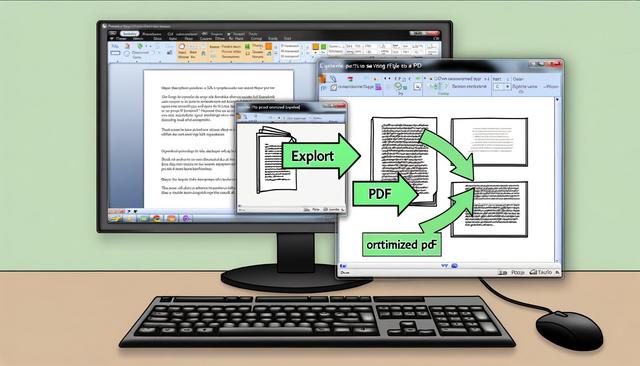
How to Export Your LibreOffice Documents to Optimized PDF Format
LibreOffice PDF export is a practical way to share office documents while preserving formatting, images, hyperlinks, and other embedded elements. LibreOffice is a widely used office suite appreciated for its free and open-source features. Exporting documents to PDF format is a common task that ensures compatibility and file security, regardless of the operating system used by the reader. For LibreOffice users, knowing how to optimize this export is crucial. Here is a comprehensive guide to maximize the efficiency and quality of your PDF documents.
Why Choose PDF Format for Your Documents
The PDF format is universally recognized for its ability to preserve formatting, images, and other elements embedded in the original document, regardless of the software or hardware used to open it. Here are some reasons to choose PDF:
- Universal Compatibility: PDFs can be viewed on almost all devices and operating systems without loss of formatting.
- Enhanced Security: PDF files can be password-protected, and modifications can be restricted.
- File Compression: The PDF format allows for file size reduction while maintaining a good level of quality, ideal for sharing and archiving.
These advantages make PDF export useful for reports, forms, presentations, administrative files, and documents that must be opened without altering their layout. A well-prepared PDF is also easier to send by email, store, print, or publish online.
Steps to Export Your LibreOffice Documents to PDF
LibreOffice includes PDF export options directly in the application. The process is simple, but each setting can affect the final document quality, file size, security, and accessibility. Before exporting, take a few minutes to review the document and select the options that match the way the PDF will be used.
1. Document Preparation
Before exporting your document, ensure it is well-formatted. Check the margins, image quality, and make sure all hyperlinks work correctly.
Good preparation reduces the risk of layout problems after export. Review headings, lists, page breaks, tables, and images before creating the PDF. If the document contains links, open them in the source document first to confirm that they lead to the expected pages or files.
- Check that text does not overflow outside the page margins.
- Verify that images are clear enough for reading or printing.
- Use consistent heading styles to keep the structure easy to follow.
- Confirm that hyperlinks work correctly before exporting.
2. Use LibreOffice Export Options
Under the File menu, select Export as PDF. This option opens a window with various settings that allow you to optimize the export according to your needs.
The export window is where you choose how the document will be converted. Some settings affect the whole PDF, while others apply to image compression, page selection, archiving, or security. If the document is intended for long-term storage, sharing, or online publication, these options are especially useful.
Options to Pay Attention To:
- General
- Pages: Choose which pages to export if you do not wish to include the entire document.
- PDF/A-1a Compatibility: For long-term archiving, check this option.
- Images
- Compression: Select between 'No Compression', 'JPEG', or 'PNG'. For a good balance between quality and file size, 'JPEG' is generally recommended.
- Reduce Resolution to + dpi: Adjust the value for high-quality images without overly large files.
The Pages option is useful when you need to export only a section of a document. For example, you can create a PDF from selected pages instead of sharing the entire file. Image settings help control the final file size. A document with many pictures can become large, so compression and resolution settings are important when the PDF must be sent electronically.
| PDF export setting | What it helps with | When to use it |
|---|---|---|
| Pages | Exports only the selected pages | When you do not want to include the full document |
| PDF/A-1a Compatibility | Supports long-term archiving | When the PDF must be preserved over time |
| Compression | Reduces or preserves image data | When balancing file size and image quality |
| Reduce Resolution to + dpi | Limits image resolution | When a PDF file should remain reasonably sized |
3. Set Security and Watermark
Security settings include password protection and restricting permissions such as printing or modifying the document. Under the Security tab, set an open password and define the necessary permission levels.
Adding a watermark can discourage unauthorized sharing. LibreOffice allows you to add this detail under the Page Background tab.
Security options are useful when the PDF contains information that should not be freely edited or printed. A password can limit access to the document, while permission settings can restrict actions such as modification. A watermark can also make the status or ownership of a document more visible when it is shared.
4. Export the Document
After configuring your preferences, click Export. Choose the save location for your PDF and give it a descriptive name.
A descriptive file name helps identify the document later, especially when several versions are stored in the same folder. After export, open the PDF and check the result. Review the layout, images, hyperlinks, page order, and any security settings that were applied.
Optimize Accessibility of Your PDF Document
Ensure that your document complies with accessibility standards. This includes adding alternative text for images, using a readable font, and structuring the document with appropriate heading styles. These actions not only make your document usable for individuals with disabilities but also improve its SEO if you plan to publish the PDF online.
Accessibility starts in the original LibreOffice document. Clear headings help readers understand the structure. Alternative text describes images for users who cannot see them. Readable fonts and logical formatting also make the exported PDF easier to use on different screens and devices.
- Add alternative text to meaningful images.
- Use heading styles instead of manually formatted titles.
- Choose fonts that are easy to read.
- Keep paragraphs short and well spaced.
- Check that the reading order remains logical after export.
Additional Tips for Successful Export
- Check Hyperlinks: Ensure that all hyperlinks work, especially if your document is shared electronically.
- Reduce Image Size Before Importing: To lighten your final file, use image editing software to compress images before inserting them into LibreOffice.
- Review Spelling and Grammar: A well-written document appears more professional and credible.
These checks are simple but effective. Hyperlinks should be tested because a PDF is often shared as a final file. Image size should be managed before and during export to avoid unnecessarily large documents. Spelling and grammar review is also important when the PDF is sent to clients, colleagues, readers, or public audiences.
LibreOffice PDF Export Checklist
Use this quick checklist before creating the final PDF. It summarizes the main points covered in the guide and helps avoid common export problems.
- Review margins, page breaks, titles, and layout.
- Check image quality and reduce file size when needed.
- Test all hyperlinks before export.
- Select the relevant pages in the export options.
- Choose image compression settings that fit the document use.
- Enable PDF/A-1a Compatibility when long-term archiving is needed.
- Set password protection and permissions if file security is required.
- Add a watermark through the Page Background tab when appropriate.
- Review accessibility elements such as alternative text and heading styles.
- Open the exported PDF and verify the final result.
FAQ About LibreOffice PDF Export
How do I export a LibreOffice document to PDF?
Open the File menu and select Export as PDF. Then choose the export settings, click Export, select a save location, and give the PDF a descriptive name.
Which LibreOffice PDF settings help reduce file size?
The image compression options and the Reduce Resolution to + dpi setting help keep the PDF file size under control. You can also reduce image size before importing images into LibreOffice.
Can I protect a PDF exported from LibreOffice?
Yes. In the Security tab of the PDF export window, you can set an open password and define permission levels to restrict actions such as printing or modifying the document.
What is PDF/A-1a Compatibility used for?
The PDF/A-1a Compatibility option is used for long-term archiving. It should be selected when the PDF needs to be preserved over time.
How can I make a LibreOffice PDF more accessible?
Add alternative text for images, use readable fonts, and structure the document with appropriate heading styles before exporting. These actions help make the PDF easier to use and understand.
Exporting your LibreOffice documents to PDF should not be a random process. With a bit of preparation and an understanding of the export options available, you can ensure that your documents are high quality and well-optimized to meet your needs. By following these steps, you’ll be able to produce professional, secure, and reasonably sized PDF files.
Download the latest version of LibreOffice

