How to Manage Styles in LibreOffice Writer for Professional Documents
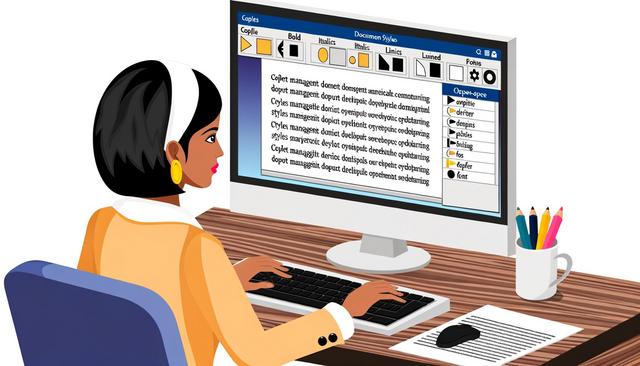
LibreOffice Writer styles help users create and manage professional documents with a consistent structure and visual appearance. LibreOffice Writer is a powerful tool that allows users to create and manage professional documents with great ease. One of the most important aspects of ensuring a well-organized and visually appealing document is the use of styles. In this article, we will explore how to effectively manage styles in LibreOffice Writer for professional documents.
Styles are useful for reports, letters, manuals, proposals, academic documents and any text that needs clear formatting. Instead of formatting each heading, paragraph or list manually, you can apply a predefined style and keep the document easier to update.
Understanding the Importance of Styles in LibreOffice Writer
Styles in LibreOffice Writer allow you to standardize the appearance of your document. This includes font, font size, color, line spacing, and much more. Using styles not only ensures consistency throughout the document but also makes global changes easier. If you decide to change a style, all instances of that style in the document will be updated automatically.
This approach is especially practical when a document becomes long or complex. For example, if all main headings use the same Paragraph Style, you can change their size, spacing or color from one place. LibreOffice Writer then applies the change everywhere that style is used.
Using styles also helps separate the content from its formatting. You can focus on writing first, then adjust the visual presentation later without editing every paragraph by hand. This makes document management clearer and reduces formatting mistakes.
Types of Styles Available in LibreOffice Writer
LibreOffice Writer offers several types of styles that users can customize for their specific needs. Here are the main types of styles available:
-
Paragraph Styles: These define the appearance of paragraphs. This is the most commonly used style, as it covers many aspects such as alignment, spacing, and borders.
-
Character Styles: Designed to format specific parts of text within a paragraph, these styles control the font, font size, and text attributes such as bold or italic.
-
Frame Styles: Used for formatting frames that can contain text or other objects like images. They define the size, position, and text wrapping around the frame.
-
Page Styles: They affect the overall layout of the document pages, including margins, page format, and header and footer.
-
List Styles: Used to format bullet or numbered lists, these styles control the bullet type, numbering style, and indentation.
The following summary can help you choose the right type of style depending on the formatting task:
| Style type | Main use in LibreOffice Writer |
|---|---|
| Paragraph Styles | Format complete paragraphs, including alignment, spacing and borders. |
| Character Styles | Format selected words or phrases inside a paragraph, such as bold or italic text. |
| Frame Styles | Format frames that contain text or images, including size, position and wrapping. |
| Page Styles | Control page layout elements such as margins, page format, headers and footers. |
| List Styles | Format bullet lists and numbered lists, including indentation and numbering style. |
How to Apply a Style in LibreOffice Writer
To apply a style, simply open the styles panel by pressing F11 or by going to the "View" menu and selecting "Sidebar". In the styles panel, you can see all the predefined styles as well as those you have created. Select the text or paragraph you wish to apply the style to, then double-click on the style in the panel to apply it.
For a paragraph, place the cursor anywhere inside the paragraph before applying a Paragraph Style. For a Character Style, select only the words or characters you want to format. This helps you avoid applying a style to more text than intended.
If you use the same type of formatting many times, applying a style is usually faster than repeating manual formatting. It also makes later changes easier because the formatting remains linked to the style definition.
Customization and Creation of New Styles
Customizing an Existing Style
- Open the styles panel and right-click on the style you wish to modify.
- Select "Modify" to open the style dialog box.
- Change the settings according to your preferences, including font, size, spacing, and more.
- Click "OK" to apply the changes to the entire document.
Customizing an existing style is useful when the predefined formatting is close to what you need but not exact. You can adjust the font, size, spacing, borders or other available settings in the style dialog box. Once confirmed, the change applies to every part of the document using that style.
Creating a New Style
Creating a new style allows you to further customize your document:
- Open the styles panel and click on the "New style from selection" icon at the bottom of the panel.
- Name your style.
- Set the attributes as desired in the style dialog box.
- Save the new style, which will now be available for application elsewhere in the document.
When naming a new style, choose a clear name that describes its purpose. For example, a name based on the role of the text can be easier to understand than a name based only on its appearance. This makes the style easier to reuse later in the same document.
Practical Uses for Styles in LibreOffice Writer
Styles can be used in many everyday writing tasks. They are helpful when you need a professional document that remains consistent from the first page to the last page.
- Headings and subheadings: Use Paragraph Styles to keep titles consistent and easier to update.
- Body text: Apply one style to standard paragraphs to control font, spacing and alignment.
- Highlighted words: Use Character Styles for terms that need bold, italic or another text attribute.
- Lists: Use List Styles to keep bullet and numbered lists aligned in the same way.
- Page layout: Use Page Styles when the document needs defined margins, headers or footers.
These uses make formatting more predictable. They also help when several sections of a document must follow the same visual rules.
Tips for Effectively Using Styles
- Organize Your Styles: Create a logical hierarchy of styles to ensure visual consistency and facilitate navigation in your document.
- Use Templates: Unlock the full potential of styles by saving style configurations in a template to reuse in other documents.
- Stay Flexible: Needs may change; it's essential to review and adjust styles to meet new professional requirements.
It is also useful to avoid combining too many manual formatting changes with styles. Manual changes can make a document harder to maintain because they may not update when a style is modified. Keeping formatting linked to styles as much as possible helps maintain consistency.
Templates are especially helpful when you regularly create the same kind of document. A template can store the style configuration, so you do not need to rebuild the same formatting each time.
FAQ About LibreOffice Writer Styles
What are styles in LibreOffice Writer?
Styles are formatting definitions used to control the appearance of text, paragraphs, frames, pages and lists in LibreOffice Writer. They help keep a document consistent.
How do I open the styles panel in LibreOffice Writer?
You can open the styles panel by pressing F11 or by going to the "View" menu and selecting "Sidebar".
What is the difference between Paragraph Styles and Character Styles?
Paragraph Styles format entire paragraphs, including alignment and spacing. Character Styles format selected text inside a paragraph, such as bold or italic words.
Can I create my own styles in LibreOffice Writer?
Yes. You can create a new style from a selection, name it, set its attributes in the style dialog box and then reuse it elsewhere in the document.
Why should I use templates with styles?
Templates let you save style configurations and reuse them in other documents. This helps maintain the same formatting across similar professional documents.
Conclusion
Proper management of styles in LibreOffice Writer is essential for producing attractive and consistent professional documents. By understanding the different types of styles and how to customize them, you can transform the appearance of your documents and enhance your productivity. Investing time to master styles will provide invaluable returns in your professional career.
Whether you use Paragraph Styles, Character Styles, Frame Styles, Page Styles or List Styles, the key is to apply them consistently. With clear styles and reusable templates, LibreOffice Writer makes document formatting easier to manage and easier to update.
Download the latest version of LibreOffice

