Introducing Impress Remote for LibreOffice
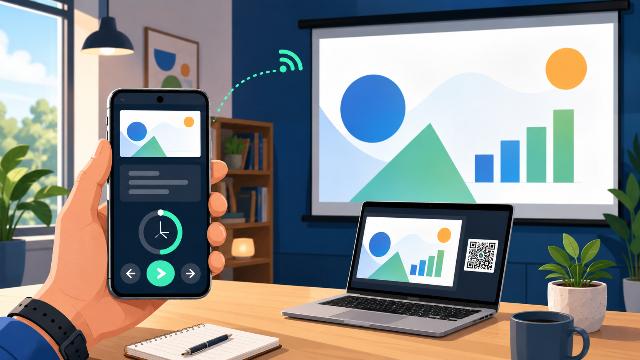
Impress Remote for LibreOffice offers a new way to control a presentation from your smartphone. This extension transforms a simple web browser into a remote control for LibreOffice Impress. You can easily switch slides, check your notes, and track the elapsed time without having to stay in front of your computer.
A User-Centric Development
Bora Yarkin developed this extension to meet a very specific need. He wanted to recreate an experience with LibreOffice that was similar to what Apple Keynote offers. However, he aimed to avoid a dedicated mobile application and limit reliance on online services.
Ease of Installation and Use
The result takes the form of a relatively simple LibreOffice extension to install. Once activated, it displays a QR code. You scan it with your phone, and the remote interface opens in your browser.
Ideal for Professionals
This approach makes Impress Remote particularly appealing for teachers, trainers, speakers, and professionals who regularly use LibreOffice Impress.
Impress Remote Turns Your Smartphone into a LibreOffice Remote Control
The principle behind Impress Remote is deliberately simple. This extension allows you to control a LibreOffice Impress presentation from almost any device equipped with a modern web browser.
Therefore, there is no need to install a specific application on Android or iPhone. Similarly, you do not have to manually enter a complicated pairing code.
When you launch the remote control function, LibreOffice displays a QR code. You scan it with your smartphone. Then, the presentation starts from the first slide.
The phone screen displays several useful pieces of information:
- the currently displayed slide;
- the presenter’s notes;
- the elapsed time since the beginning of the presentation;
- the controls to advance or go back.
This organization can make presentations smoother. Indeed, the presenter keeps their notes handy without constantly looking at the computer screen.
The smartphone thus becomes a true portable presentation console.
How to Launch Impress Remote in LibreOffice Impress
The extension adds its commands in LibreOffice. However, their location depends on the interface you are using.
With the classic interface, you can access the remote control from the Slide Show menu located in the main LibreOffice toolbar. This is the menu displayed alongside File, Edit, or View.
Do not confuse this menu with the Slide Show tab present in the tabbed interface of LibreOffice.
This difference currently stems from a limitation of LibreOffice's UNO API, which does not allow developers to directly add their commands to certain native tabs of this interface.
As a result, if you are using the tabbed interface, you will find the Impress Remote commands in the Extensions tab.
This arrangement may seem unusual at first. However, it does not prevent the normal use of the extension.
Multiple Connection Modes to Control a Presentation
Impress Remote does not rely on a single connection method. The developer has provided several solutions to adapt to different networks.
This flexibility can become crucial in a company, school, or conference room. Indeed, public or professional Wi-Fi networks sometimes use firewalls and filtering systems.
Local Connection via IPv4
The IPv4 local mode is currently the main method.
The phone connects directly to the computer running LibreOffice. The two devices must therefore be able to communicate over the same local network.
This mode remains the most tested to date. The developer has used it on various networks, with different Internet Service Providers and multiple VPN configurations.
For most users, this method should therefore represent the first choice.
Direct Connection via IPv6
Impress Remote also offers a direct connection using IPv6.
The operation is similar to that of the IPv4 mode. However, the developer still considers this feature experimental.
The reason is simple: they currently have a limited environment to test real IPv6 connections on various independent networks.
The community can therefore play an important role in verifying its behavior in more varied configurations.
Relay Server for Complex Networks
The extension also includes a mode using a relay server.
This solution becomes interesting when the phone and the computer are not on the same network. It can also solve certain problems caused by a firewall, an operator's NAT, or a restrictive network configuration.
The relay server takes the form of a small Python service. You can host it on Linux or Windows.
A company can therefore set up its own relay server on its infrastructure.
This option also has another advantage. The server can handle multiple connections. A business or organization can thus offer a common service to several users.
The package necessary for the relay server is provided with the extension. You can retrieve it from the Impress Remote configuration window with the Get Relay Server option.
The package also includes the documentation needed for installation.
LocalTunnel as a Backup Solution
Finally, Impress Remote offers a mode based on LocalTunnel.
This solution creates an outgoing connection to the LocalTunnel service. However, the developer mainly presents it as a last resort experimental solution.
It can be useful when other methods fail. However, the local IPv4 mode remains preferable when network conditions allow.
How to Install Impress Remote in LibreOffice
The installation follows the standard procedure for LibreOffice extensions.
You first need to obtain the file in .oxt format. The project can be downloaded from the LibreOffice extensions site or from GitHub.
Then, you can directly open the file with LibreOffice.
You can also install it from the menu:
Tools > Extensions
After installation, LibreOffice may prompt you to restart the application. This restart allows the new commands to be loaded properly.
The extension does not require the installation of an additional mobile app. Your phone only uses its web browser.
This simplicity is likely one of the main advantages of the project.
Over 100 Languages Built into the Extension
Impress Remote includes translations for more than 100 languages.
The extension detects the language used by the LibreOffice interface and automatically adapts its texts.
The developer has personally verified the English and Turkish versions. However, many other translations were generated with the help of ChatGPT.
Their quality may therefore vary.
Bora Yarkin particularly invites native speakers to check the translations and suggest corrections.
This community participation can quickly improve the quality of the extension. It can also make Impress Remote more accessible in many countries.
An Extension Inspired by the Functionality of Apple Keynote
The idea for Impress Remote comes directly from a habit acquired with Apple Keynote.
When a user installs Keynote on a Mac and an iPhone, they can use their phone as a remote control. They can also consult their notes during the presentation.
This function has profoundly changed Bora Yarkin’s way of presenting.
Instead of filling his slides with a lot of text, he started to use the presenter’s notes more. He placed part of the text he wanted to say there.
As a result, the slides became more visual.
Moreover, the audience looked more at the presenter instead of reading a screen full of paragraphs.
This functionality may also interest LibreOffice Impress users. Indeed, the phone becomes almost a small personal prompter.
The presenter therefore retains the information they need without displaying it to the audience.
Why the Developer Chose LibreOffice
Bora Yarkin had been using Keynote for a long time. However, he explains that he never really appreciated its interface.
The software’s evolution and the introduction of paid features ultimately pushed him to look for another solution.
He then explored several alternatives.
LibreOffice had previously had a mobile application for Impress Remote. However, this application has not been maintained for a long time. It therefore becomes challenging to use on some recent devices and systems.
Presentation platforms accessible from a browser sometimes offer their own remotes. However, they usually require an online service.
The developer did not want to make his presentation activity dependent on a web platform.
Microsoft Office also represented a possibility. However, he does not like the direction Microsoft has recently taken, particularly with the increasing integration of Copilot.
He also used OnlyOffice Desktop Editors for a while. This suite suited him in several situations. However, he encountered various problems and ultimately needed missing features.
LibreOffice then emerged as a solution more suited to his needs.
All it lacked was a proper modern presentation remote.
A Project Developed with the Help of ChatGPT and the UNO API
Bora Yarkin primarily works in IT and possesses programming knowledge. However, he does not consider himself an advanced software developer.
Before this project, he also knew very little about LibreOffice's UNO API.
He therefore used ChatGPT to help him understand this API and implement different parts of the code.
However, he defined the architecture, functionalities, interface, and constraints of the project himself.
For example, he decided from the start that localization should be part of the essential functions.
This use of artificial intelligence also shows an interesting evolution in software development. Technical users can now explore complex APIs more quickly and create tools tailored to their own needs.
The project was not initially intended to become public.
The first version remained very rudimentary. The web interface didn't even have a button for going back.
However, the system worked.
The developer then realized that other LibreOffice users might be looking for the same functionality.
He thus transformed his personal tool into a full-fledged extension.
Many Features Added Before Release
To publish Impress Remote, Bora Yarkin had to go well beyond his initial prototype.
He notably added a more advanced mobile interface, various connection settings, and QR code generation.
The project also received IPv6 support, a relay server, and LocalTunnel mode.
Additionally, there were error handling, translations, documentation, and installation package creation.
The publication on the LibreOffice extensions site ultimately went more smoothly than expected.
The developer created an account, added the project page, and submitted the extension. After about a day of verification, it became publicly available.
The LibreOffice Community Can Contribute to Testing
Impress Remote is already functional. However, some features require more extensive testing.
The developer primarily uses macOS with an iPhone. He has also conducted trials on Windows and Linux.
However, these tests sometimes took place under particular conditions. He notably used virtual machines, remote desktop sessions, and a Windows server without a complete graphical environment.
Tests on real Windows and Linux computers would therefore be particularly helpful.
The community can also participate on several points:
- test different versions of LibreOffice;
- verify functionality on Windows, Linux, and macOS;
- try different Android smartphones and mobile browsers;
- test IPv6 between several truly separate networks;
- experiment with the relay server in an organization;
- try configurations with VPN, NAT, or firewalls;
- correct translations;
- improve documentation;
- report bugs and suggest new features;
- contribute directly to the code with pull requests.
The project’s GitHub repository actually contains templates for bug reports, feature requests, and contributions.
Some Modes Still Require More Testing
The local IPv4 mode is currently the most proven part of the project.
The developer has tested it on different local networks, several ISPs, and various VPN configurations.
Conversely, the IPv6, relay server, and LocalTunnel modes have received less feedback.
They do not necessarily present any major known issues. However, more testing is needed before considering them fully proven.
If you encounter a connection issue, the developer recommends providing several pieces of information.
You can indicate your operating system, your LibreOffice version, and your browser.
Also include the model or type of phone used, the selected connection mode, and some general details about your network.
These details will greatly facilitate problem identification.
Impress Remote Enhances the Appeal of LibreOffice Impress
Impress Remote stems from a personal need. However, the project can respond to a much broader use.
It allows moving away from the computer during a presentation. Additionally, it provides access to presenter notes directly from a smartphone.
This function can encourage simpler and more visual slides.
The presenter can keep their text or reminders in their notes. The audience, for its part, focuses more on the oral presentation.
The absence of a dedicated mobile app also simplifies deployment. A modern browser is sufficient.
Finally, the various connection modes make the project interesting for several types of environments. An individual can use their local Wi-Fi network. An organization, on the other hand, can host its own relay server.
The project remains young and some functions still need to be tested on a larger scale.
However, Impress Remote already demonstrates how an extension can complement LibreOffice with a practical function that many users lacked.
For Bora Yarkin, the objective now goes beyond his own use. He aims to make the extension reliable enough for users and organizations to seamlessly integrate it into their daily presentations.
FAQ about Impress Remote for LibreOffice
Is it necessary to install an app on the smartphone?
No. Impress Remote uses the phone's web browser. Therefore, you do not need to install a specific Android or iOS application.
Does Impress Remote work on Windows and Linux?
The extension has been tested on macOS, Windows, and Linux. However, the developer seeks more tests on real Windows and Linux systems.
Does the phone need to be connected to the same Wi-Fi as the computer?
With the local IPv4 mode, the devices must be able to communicate over the same network. However, the relay server also allows connections between different networks.
Can presenter notes be displayed on the phone?
Yes. The remote interface notably displays the current slide, the presenter’s notes, the elapsed time, and navigation buttons.
Is Impress Remote already fully finalized?
The local IPv4 mode benefits from extensive testing. However, the IPv6, relay server, and LocalTunnel modes still require more community feedback.

