
Integrate Charts and Images in LibreOffice Guide
- 08/06/2025 03:38am
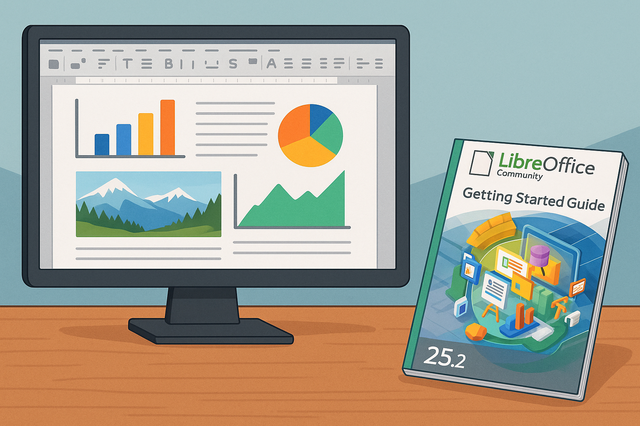
Why Integrate Graphics and Images in LibreOffice?
Integrating charts and images in LibreOffice documents adds an essential visual dimension that can enhance the understanding and appeal of your content. Whether you are using LibreOffice Writer to draft a report, LibreOffice Calc to present statistical data, or LibreOffice Impress for a presentation, the addition of visual aids can transform your documents into powerful communication tools.
Images help illustrate ideas, show examples, and make long documents easier to read. Charts make numerical information clearer by turning data into a visual format. In LibreOffice, these elements can be inserted, resized, positioned, and customized directly in your document, spreadsheet, or presentation.
Steps to Insert Images in LibreOffice
LibreOffice lets you add graphics and images to support written content, improve page layout, and make information easier to understand. The main steps are simple: insert the image, adjust its size, choose its position, and apply basic formatting when needed.
-
Inserting Static Images
- To add an image, go to the "Insert" menu and choose "Image". You can then select an image from your computer.
- Make sure your image is in a compatible format, such as JPG, PNG, or GIF, for optimal rendering.
-
Resizing and Positioning Images
- Once the image is inserted, you can resize it by clicking and dragging the corners of the image.
- Use the positioning options to align the image with the text: in front, behind, or inline with the text.
-
Enhancing Images with LibreOffice Tools
- LibreOffice offers simple editing tools to adjust the brightness, contrast, and opacity of your images.
- Apply borders and shadows to add depth to your images.
When you resize an image, dragging the corners helps keep its proportions more consistent than dragging only one side. Positioning options are useful in Writer when you need an image to appear inside a paragraph, next to text, or as a separate visual element on the page.
Integrating Charts into Your LibreOffice Documents
Charts are especially useful when your document includes values, comparisons, or trends. LibreOffice Calc can create charts from selected data, and those charts can then be used in other LibreOffice documents.
-
Creating Charts in LibreOffice Calc
- Start by entering your data into LibreOffice Calc. Then select the relevant cells, go to "Insert" and choose "Chart".
- You can choose from various chart types: bar, line, pie, etc.
-
Customizing Charts
- Once the chart is inserted, use the "Edit" tab to customize colors, legends, and labels for your data.
- Ensure that the chosen chart type clearly highlights your data to maximize visual impact.
-
Inserting Charts in LibreOffice Writer
- You can copy charts from Calc and paste them directly into a Writer document. This allows for dynamic linking of data, so any updates in Calc will automatically be reflected in Writer.
In Calc, selecting the correct range of cells before inserting the chart helps LibreOffice identify the data to display. Labels and legends make the chart easier to read, especially when several data series are shown in the same graphic.
| LibreOffice component | Visual element | Common use |
|---|---|---|
| LibreOffice Writer | Images and pasted charts | Reports, guides, letters, and documents with illustrations |
| LibreOffice Calc | Charts | Visual presentation of statistical data and spreadsheet values |
| LibreOffice Impress | Images and charts | Slides and presentations with visual aids |
Tips for Optimized Graphic Integration
Good visual integration is not only about inserting a file. It also depends on document size, image quality, alignment, and visual consistency. These details help keep the document clear and professional.
-
Image Compression
- Before inserting large images, consider compressing them to avoid increasing the size of your document. Use image compression tools that maintain quality without noticeable loss.
-
Using Vector Graphics
- Vector image formats, such as SVG, maintain their quality when resized. They are ideal for logos and illustrations.
-
Maintaining Visual Consistency
- Ensure all visual elements follow a consistent color palette and unified style to maintain a professional presentation of your document.
For a cleaner layout, use similar image sizes when showing related visuals. For charts, keep labels readable and avoid adding more visual effects than necessary. A clear chart is easier to understand than a crowded one.
Advantages of Using LibreOffice for Charts and Images
LibreOffice provides a suite of free and open-source applications, offering a wide range of features at no additional cost. The ability to work offline and extensive customization options make LibreOffice an ideal choice for many users, whether students, professionals, or educators.
LibreOffice Writer is useful for written documents that need images, charts, and text on the same page. LibreOffice Calc helps create charts from spreadsheet data. LibreOffice Impress can use images and charts as visual aids in presentations. These tools make it possible to prepare different types of documents while keeping visual elements consistent.
FAQ
How do I insert an image in LibreOffice?
Go to the "Insert" menu, choose "Image", and select an image from your computer. You can then resize and position it in your document.
Which image formats can be used in LibreOffice?
The article mentions compatible formats such as JPG, PNG, and GIF. SVG is also mentioned as a vector format that keeps its quality when resized.
How do I create a chart in LibreOffice Calc?
Enter your data in LibreOffice Calc, select the relevant cells, then go to "Insert" and choose "Chart". You can then select a chart type such as bar, line, or pie.
Can I use Calc charts in LibreOffice Writer?
Yes. You can copy charts from Calc and paste them directly into a Writer document. The article also mentions dynamic linking of data, so updates in Calc can be reflected in Writer.
How can I keep a LibreOffice document professional when using images and charts?
Use consistent colors, clear labels, suitable image sizes, and appropriate positioning. Compress large images when needed to avoid increasing the document size too much.
Conclusion
Knowing how to integrate charts and images into your LibreOffice documents is an invaluable skill that can enhance the presentation and clarity of your information. With user-friendly tools and advanced customization options, LibreOffice proves to be a powerful solution for all your office tasks. By following these tips, you will ensure effective visual communication and a significant impact on your readers. Utilize the mentioned tips to optimize your documents while maintaining a professional and appealing presentation.
Download the latest version of LibreOffice

