LibreOffice Writer Footer: The Ultimate Guide to Perfecting Your Layout
- 11/16/2026 11:12pm
Understanding Footers in LibreOffice Writer
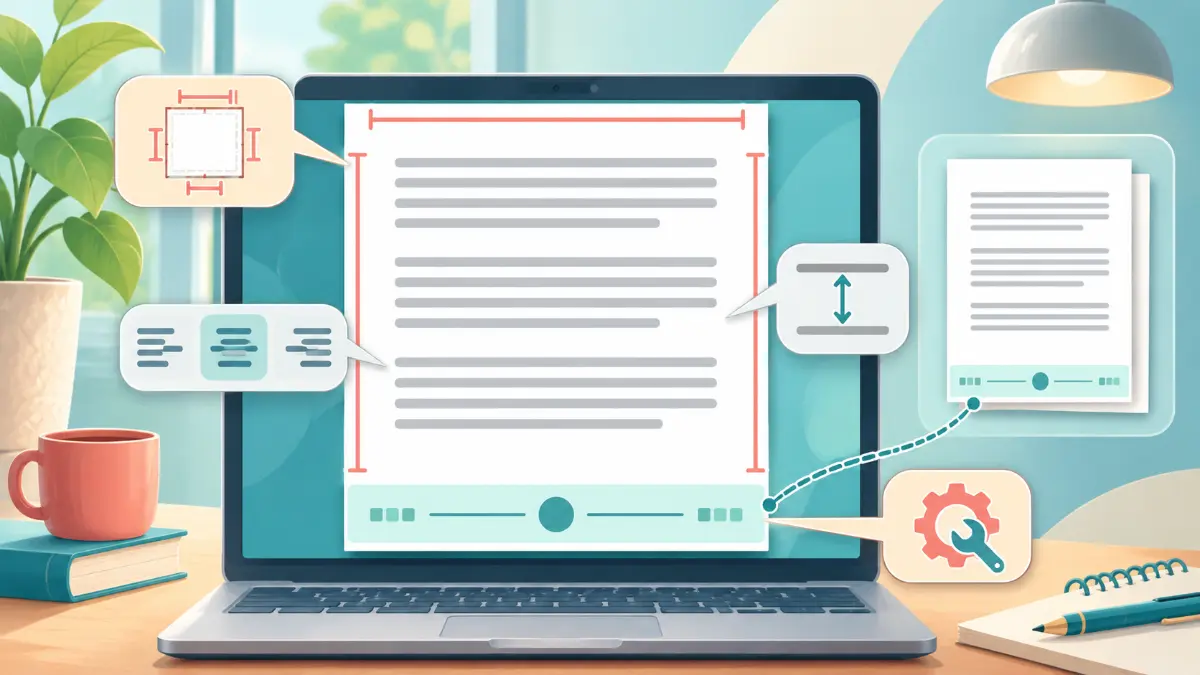
The footer in LibreOffice Writer allows you to display information at the bottom of each page. You can place a page number, author's name, date, or a confidentiality notice there.
Common Challenges with Footers
However, configuring it can sometimes be problematic. The footer may disappear, repeat when you want to edit it, or appear on the first page despite your settings.
Other users face issues with numbering or the spacing between the text and the bottom of the document.
Customizing Your Footer
Fortunately, LibreOffice Writer offers several tools to customize this area.
Guide Overview
In this guide, you will discover how to add, modify, delete, and optimize a footer in LibreOffice. You will also learn how to resolve the most common issues.
How to Add a Footer in LibreOffice Writer?
LibreOffice Writer allows you to insert a footer in any text document. This feature is particularly useful for reports, theses, professional letters, and administrative documents.
To add a footer:
-
Open your document in LibreOffice Writer.
-
Click on the Insert menu.
-
Select Header and Footer, then Footer.
-
Choose the page style used in your document.
-
Click in the new area at the bottom of the page.
-
Enter the desired text.
LibreOffice automatically displays this content on the pages that use the same style.
You can then customize its appearance, including its font, size, and alignment.
Note: In Writer, footers depend on page styles. This characteristic explains many configuration issues.
For example, a document may use a different style for its cover page. In this case, the footer may not appear on that page.
To find out the style used, look at the status bar at the bottom of the LibreOffice window.
How to Modify a Footer in LibreOffice?
You can modify a footer at any time, even after completing your document.
To do so, double-click in the lower area of the page. You can then select, replace, or delete its content.
LibreOffice offers the same formatting tools as in the body of the document.
You can, in particular:
-
Change the font, size, color, and alignment of the text.
-
Add page numbers, dates, or other automatic fields.
-
Insert an image, logo, or table.
-
Add a border to separate the footer from the main text.
-
Adjust the height and spacing of the footer.
To achieve a professional result, favor a simple presentation.
A font slightly smaller than that of the document is generally sufficient. For example, you could use 9 or 10 points when the main text uses 11 or 12 points.
Avoid also overly numerous pieces of information, as they might reduce the space available for your text.
Why Do Modifications Appear on All Pages?
This behavior is normal.
LibreOffice associates the footer with the page style, not with an independent page.
Thus, when several pages share the same style, they generally use the same content.
If you modify a mention in the footer, Writer reproduces this modification on the other affected pages.
To obtain different contents, you must use the footer sharing options or create multiple page styles.
How to Insert a Page Number in the Footer?
Automatic numbering is one of the most common uses of the LibreOffice footer.
Unlike a number entered manually, an automatic page number evolves with the document.
Thus, when you add or delete pages, Writer updates the numbers.
To insert numbering:
-
Enable the footer.
-
Click where you want the number to appear.
-
Open the Insert > Field > Page Number menu.
-
Select the inserted number.
-
Use the alignment commands to position it on the left, center, or right.
You can also use the Insert > Page Number command, which opens a numbering assistant.
This method makes it easier to choose positioning and alignment.
Display "Page 1 of 10" in LibreOffice
Do you want to indicate the current number and the total number of pages?
Start by inserting the "Page Number" field.
Then add the text "of", and then insert the "Number of Pages" field.
You will get, for example:
Page 3 of 12
The benefit is significant: LibreOffice automatically updates both values as the document evolves.
This way, you avoid errors related to manual numbering.
How to Remove the Footer from the First Page?
Do you want to keep a footer in your document, but not on the cover page?
This situation concerns reports, theses, books, and professional documents.
The most reliable method is to use a specific style for the first page.
Here’s how to proceed:
-
Place your cursor on the first page.
-
Open View > Styles.
-
Display the Page Styles category.
-
Double-click on the First Page style.
-
Check that the footer of this style is disabled.
-
Enable the footer of the style used on the following pages.
LibreOffice can thus display a first page without a footer, and then resume a normal presentation.
This solution is preferable to manually deleting the content, as it maintains a coherent structure.
You can also use Format > Title Page to organize the first pages of your document.
This command especially allows you to convert an existing page into a title page.
How to Have Different Footers in LibreOffice?
Do you want to display one mention on some pages and another elsewhere?
For example, your document may require:
-
A specific footer for the introduction.
-
A classic numbering for the chapters.
-
A confidentiality notice in the annexes.
LibreOffice meets this need thanks to page styles.
Each style has its own layout settings, including for headers and footers.
To create a custom style, open the Styles pane, then select Page Styles.
Then right-click on an existing style and choose New.
Give an explicit name to your style, such as "Annexes" or "Chapter".
Configure its footer, then apply this style to the relevant part.
To change style in the middle of a document, use Insert > More Breaks > Manual Break.
Then select the desired page style.
This way, you can display multiple footers in the same document.
However, avoid unnecessarily multiplying styles. A simple organization facilitates future modifications.
How to Customize Even and Odd Footers?
Documents intended for printing may sometimes use a different layout depending on the side of the page.
For example, a book may display numbers on the left on even pages and on the right on odd pages.
LibreOffice Writer allows this customization.
Open Format > Page Style, then select the Footer tab.
First, ensure that the footer is enabled.
Then disable the option that enforces the same content on left and right pages.
You can then customize the corresponding footers.
This configuration is particularly suitable for documents printed double-sided.
For a document intended only for screen reading, a uniform footer is generally simpler.
How to Adjust the Height and Margins of the Footer?
A footer that is too high reduces the space available for the main text.
Conversely, a footer placed too low can create problems when printing.
LibreOffice offers several settings to correct these situations.
Open Format > Page Style, then the Footer tab.
You will find the following parameters:
| Parameter | Function |
|---|---|
| Spacing | Defines the distance between the main text and the footer. |
| Height | Determines the height of the footer area. |
| Dynamic height adjustment | Allows adjusting the height according to the content, according to the chosen setting. |
| Border and background | Customizes the appearance of the area. |
Start by checking the spacing.
An excessive gap can lead to a reduced writing area.
Next, review the height of the footer.
If you have inserted multiple lines, an image, or a table, the area may need more space.
Finally, check the bottom margin in the Page tab.
This margin and the footer spacing serve different functions.
To avoid printing problems, maintain a sufficient distance from the edge of the paper.
Why Isn't the Footer Appearing in LibreOffice?
An absent footer does not necessarily mean its content has been deleted.
Several reasons could explain this issue.
The Footer is Not Enabled
First, check the page style settings.
Open Format > Page Style > Footer.
If the footer is disabled, enable it.
The Document Uses Multiple Page Styles
Your document may use a style for the first page and another for subsequent pages.
In this case, the footer must be configured for each concerned style.
Check the status bar to identify the style of the active page.
The Display Mode Hides the Footer
Certain display modes do not show the document as a printed page.
Ensure that LibreOffice uses a layout-appropriate display.
The Footer Content is Invisible
White text on a white background may give the impression that the footer has disappeared.
Select its content and check the text color.
Also, check the font size and the presence of any objects that may obscure the text.
Why is My Footer Repeating Everywhere?
You modified the footer on one page, but LibreOffice reproduces the changes throughout the document?
This behavior generally stems from using a common page style.
The footer constitutes a repeated area on pages that share the same style.
You cannot obtain completely independent content on each page simply by modifying the text.
To resolve the issue, first identify the parts that require a different presentation.
Then create the appropriate styles and apply them to those parts.
If your goal concerns only the first page or even and odd pages, use the options provided for that purpose.
This approach limits additional styles and simplifies document maintenance.
How to Completely Remove a Footer?
Do you want to remove the footer from a LibreOffice document?
It is not enough to erase its text, for the area may remain active and continue to take up space.
To completely remove the footer:
-
Position the cursor on an affected page.
-
Click on Insert > Header and Footer > Footer.
-
Uncheck the concerned page style.
-
Confirm the deletion if LibreOffice prompts you.
You can also use the context menu associated with the footer area.
Note: Deleting this area also removes its content for the concerned style.
If your document uses multiple styles, repeat the operation for each affected style.
Before making any significant changes, save a copy of the document.
That way, you can restore your original layout in case of an error.
How to Add a Separation Line to the Footer?
A horizontal line helps distinguish the footer from the main content.
This presentation is suitable for professional reports and administrative documents.
LibreOffice offers a border function specifically adapted for this.
Open Format > Page Style, then select Footer.
Click on More to access border and background options.
Activate a top border, then choose its thickness and color.
You can also adjust the spacing between the line and the text.
Favor a discreet border, as a line that is too thick may overwhelm the presentation.
Avoid creating this separation with a succession of dashes.
A real border remains more reliable and adapts better to layout changes.
How to Avoid Footer Issues After a Word Conversion?
Do you receive a Microsoft Word document and want to edit it in LibreOffice?
The compatibility between DOCX and ODT formats usually works correctly. However, some complex documents may show layout differences.
Footers deserve special attention.
After opening the document, check the following:
-
The presence of the footer on each section.
-
The automatic numbering.
-
The distinction between the first page and following pages.
-
The margins and spacing.
-
The display of images, tables, and legal mentions.
If you notice a difference, examine the page styles.
Word documents may use sections and specific settings. Their conversion may therefore require some adjustments in Writer.
For a document that you primarily edit with LibreOffice, favor the ODT format.
If you need to regularly exchange files with Word users, keep the DOCX format and check the results.
In any case, export a PDF version before sending a final document.
This way, you can check the final presentation and avoid unpleasant surprises.
How to Optimize the Footer for a Professional Document?
An effective footer should convey useful information without distracting the reader’s attention.
For a professional letter, you can display your company's contact information.
For a report, focus on the document title and page number.
For a thesis, clear numbering facilitates reading and referencing.
In an internal document, a confidentiality notice can also be relevant.
However, the footer should not become a second writing zone.
Therefore, limit its content to genuinely necessary information.
Use a legible font and maintain sufficient contrast with the background.
Also, consider those who will print your document in black and white.
A color that is too light may become difficult to read.
Lastly, check the rendering on screen and paper. A correctly positioned footer should remain visible without encroaching on the main text.
FAQ: Other Footer Problems in LibreOffice
Can You Automatically Insert the Date in a Footer?
Yes. Click in the footer, then use the field insertion commands to add a date.
You can choose an updatable date field or a fixed date depending on your needs.
This distinction is essential for administrative documents and reusable templates.
Why Does LibreOffice Display "Page Number" Instead of a Number?
LibreOffice may display the field name instead of its value.
To see the actual number, open View > Field Names.
You can also use the keyboard shortcut Ctrl + F9 on Windows and Linux.
Can You Insert a Logo in the Footer?
Yes. Place the cursor in the footer, then use Insert > Image.
Resize your logo to ensure it fits properly.
Also, check its anchoring and positioning to maintain a stable layout.
Can You Use a Footer in a LibreOffice Template?
Yes. Set up the footer in your document, then save it as a template.
You can then create new documents that automatically retain this layout.
This method facilitates the production of consistent letters, reports, and professional documents.
Conclusion: Mastering Footers in LibreOffice Writer
The LibreOffice Writer footer offers many customization options.
You can add repetitive information, insert automatic numbering, or create a different layout depending on the pages.
However, a good understanding of page styles is essential.
In fact, most difficulties stem from the relationship between the footer and the style applied to the document.
Before modifying your layout, check the style used, the repetition options, and the spacing parameters.
This way, you will avoid numbering problems, missing footers, and unintentional changes.
Finally, remember to check your document in the print preview and after exporting it to PDF.
You will achieve a more readable, coherent document ready to be shared.