
Cash Flow Table with LibreOffice Calc: Easy Guide
- 04/28/2026 02:20am
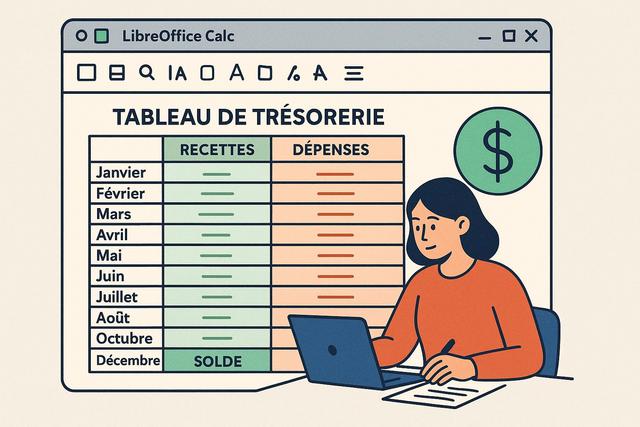
Building a Business Cash Flow Table with LibreOffice Calc
A cash flow table with LibreOffice Calc helps a business track money coming in, money going out, and the balance available over a chosen period. Cash flow management is a crucial element in ensuring the financial health of a business. Creating a cash flow table is an effective way to track cash flows. In this article, we will show you how to build a business cash flow table using LibreOffice Calc, a powerful and free tool.
This guide focuses on a simple structure that can be used for daily, weekly, or monthly monitoring. It explains the basic columns, the main formulas, and the formatting options that make the table easier to read.
Why Use a Cash Table?
A cash table is essential for several reasons:
- Tracking Inflows and Outflows: It allows you to keep an eye on incoming and outgoing cash flows.
- Forecasting Cash Needs: You can predict when the business might encounter surpluses or deficits.
- Informed Decision-Making: Having a clear view of cash flow enables you to make informed strategic decisions.
Using LibreOffice Calc to create this table provides significant benefits. The software is not only free but also offers many advanced features, ideal for small and medium-sized enterprises.
LibreOffice Calc is a spreadsheet tool. It lets you organize financial information in rows and columns, calculate balances with formulas, and display the results with clear formatting. For a cash flow table, this structure is practical because each transaction can be recorded with a date, a description, an inflow, an outflow, and an updated balance.
Understanding the Components of a Cash Table
Before diving into the creation of the table, let's first understand its main components:
- Opening Balance: The available cash at the beginning of the period.
- Cash Inflows: Incoming cash flows such as sales or reimbursements.
- Cash Outflows: Outgoing cash flows, such as payments to suppliers, wages, or other expenses.
- Closing Balance: Calculated by adding the opening balance and cash inflows, then subtracting the cash outflows.
These components make the cash table easy to follow. The opening balance shows the starting point. Cash inflows increase available cash. Cash outflows reduce it. The closing balance gives the amount remaining after the recorded transactions.
| Component | Purpose in the cash flow table |
|---|---|
| Opening Balance | Shows the available cash at the beginning of the period. |
| Cash Inflows | Records incoming cash such as sales or reimbursements. |
| Cash Outflows | Records outgoing cash such as supplier payments, wages, or other expenses. |
| Closing Balance | Shows the remaining balance after inflows and outflows are calculated. |
Steps to Create Your Cash Table with LibreOffice Calc
1. Set Up Your Spreadsheet
Before you start, open LibreOffice Calc and follow these steps:
- Create a new spreadsheet. Click on "File" then "New".
- Name the columns. Use the labels: Date, Description, Opening Balance, Cash Inflows, Cash Outflows, Closing Balance.
Each column has a specific role. The Date column helps you follow transactions over time. The Description column explains what each transaction refers to. The Opening Balance, Cash Inflows, Cash Outflows, and Closing Balance columns provide the financial view of the period.
2. Enter Initial Data
- Opening Balance: Write the cash balance at the beginning of the period in the first row under the "Opening Balance" column.
- Inflows and Outflows: Enter all planned transactions for the period with their date and description.
When entering data, keep descriptions short but clear. For example, a description can indicate a sale, a reimbursement, a supplier payment, wages, or another expense. This makes the cash flow table easier to review later.
3. Use Auto Calculation Formulas
To avoid errors and save time, use formulas:
-
For the closing balance for each day or period:
- Click on the "Closing Balance" cell.
- Enter the formula:
=B2+C2-D2(adjust cell references as needed).
-
Perform auto sums:
- To total cash inflows and outflows at the end of the period, use the SUM function:
=SUM(C2:C30)or=SUM(D2:D30).
- To total cash inflows and outflows at the end of the period, use the SUM function:
Formulas are one of the most useful features of LibreOffice Calc for cash management. They reduce manual calculations and help keep the closing balance updated. If your columns are arranged differently, adjust the cell references in the formulas so that they point to the correct opening balance, cash inflows, and cash outflows.
4. Analyze Your Cash Table
Once the table is complete, review it to identify cash flow trends. Check for periods with low closing balances to anticipate working capital needs.
This review can be done by reading the closing balance line by line. If the balance decreases during a specific period, look at the related cash outflows and compare them with the planned inflows. This simple check helps you understand where cash pressure may appear.
5. Refine and Customize Your Table
The formatting tools in LibreOffice Calc allow you to make your table more understandable:
- Use cell formatting for currencies. Select the amount columns and apply the currency format.
- Color-code important rows or columns. This color coding can help easily identify critical periods.
Clear formatting improves readability. Currency formatting makes amounts easier to compare. Color coding can highlight low balances, important payments, or periods that need attention. These visual cues are useful when the table contains many rows.
Tips to Optimize Your Cash Management
Optimal cash management requires regular planning and monitoring:
- Regularly review your cash table. Updating it frequently allows for quick decision-making.
- Analyze discrepancies between forecasts and reality. Understanding the gaps helps improve future forecasts.
- Use graphs. Graphs can provide a visual overview, helping you quickly discern trends.
A cash flow table becomes more useful when it is kept up to date. Enter new inflows and outflows as soon as they are known. Then compare the expected figures with the actual figures. This habit helps improve budgeting and supports better financial management.
Graphs in LibreOffice Calc can also help you read the information faster. A graph can show whether the closing balance is increasing, decreasing, or remaining stable over the selected period. It does not replace the table, but it gives a visual overview of the same data.
Frequently Asked Questions
What is a cash flow table in LibreOffice Calc?
A cash flow table in LibreOffice Calc is a spreadsheet used to record opening balance, cash inflows, cash outflows, and closing balance. It helps track available cash over a chosen period.
Which columns should I use for a business cash flow table?
You can use the following columns: Date, Description, Opening Balance, Cash Inflows, Cash Outflows, and Closing Balance. These labels match the main components needed to monitor cash flows.
How can LibreOffice Calc calculate the closing balance?
LibreOffice Calc can calculate the closing balance with a formula such as =B2+C2-D2, adjusted to your own cell references. The formula adds the opening balance and inflows, then subtracts outflows.
Can I total cash inflows and outflows in LibreOffice Calc?
Yes. You can use the SUM function, for example =SUM(C2:C30) for cash inflows or =SUM(D2:D30) for cash outflows, depending on where your data is located.
Conclusion
Creating a business cash table with LibreOffice Calc is a simple yet essential process to ensure long-term financial viability. With regular entries and continuous analysis, this tool can become an invaluable resource for your business.
By using this guide, you'll be better positioned to closely monitor your cash flows, make informed decisions, and ensure financial stability. Whether you are a small business or a medium-sized entity, proactive cash management through accessible tools like LibreOffice Calc can make all the difference.

