
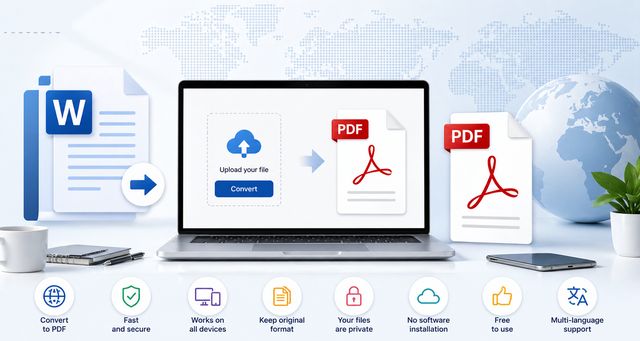
Creating a PDF with Word remains a common action, whether you are a student, employee, or freelancer. You can convert your document into a PDF in just a few clicks, without the need to install any external tools.
This guide explains how to create a PDF with Word on Windows, Mac and mobile. It also covers common problems, the main advantages of the PDF format, and a free alternative if Microsoft Word is not available.
How to Create a PDF with Word (Windows)
With Microsoft Word, the process is straightforward:
- Open your Word document (.doc or .docx)
- Click on File
- Select Save As
- Choose the location
- In “Type”, select PDF
- Click on Save
Your file is immediately converted to PDF.
This method is useful when you want to share a document without allowing easy changes to the original Word file. The PDF version keeps the document in a fixed format, which makes it easier to send by email, print, or read on another device.
Before saving, it is a good idea to quickly review the document. Check the page breaks, margins, images and headings. This helps avoid formatting issues once the file is exported as a PDF.
Create a PDF with Word on Mac
The method is similar:
- Open your document
- Click on File
- Then on Save As
- Select Format: PDF
- Confirm
The PDF is generated without any loss of layout.
On Mac, saving a Word document as PDF is convenient for sending a file to someone who does not need to edit it. It also helps keep the same visual structure, including text placement, images and basic formatting.
Create a PDF with Word on Mobile
On smartphone (Android or iPhone):
- Open your document in the Word app
- Tap on the menu (? or …)
- Select Share or Export
- Choose PDF
Convenient if you’re on the go.
Creating a PDF with Word on mobile is especially practical when you need to send a document quickly from a phone or tablet. The export option lets you create a shareable file without using a computer.
Why Use the PDF Format?
The PDF format offers several advantages:
- fixed layout
- readable on all devices
- easy to send via email
- compatible with printing
A PDF is often used when the content is finished and ready to share. Unlike a DOCX file, a PDF is designed to preserve the document appearance. This makes it suitable for resumes, reports, invoices, forms, letters, school documents and many professional files.
| Format | Main use | Best for |
|---|---|---|
| DOC or DOCX | Editing a Word document | Writing, correcting and updating content |
| Sharing a fixed document | Sending, reading and printing |
Common Issues and Solutions
The PDF button does not appear
- Check your version of Word
- Update the software
If the PDF option is missing, the problem can come from the version of Word or from a menu that is displayed differently. Look for Save As, Export or a similar option depending on the device you are using.
The PDF is poorly formatted
- Check the margins
- Use a standard font
Formatting problems can appear when a document uses unusual fonts, complex page layouts or images that are not well positioned. Before converting, check the document in Word and adjust the layout if needed.
The file is too large
- Reduce the images
- Use PDF compression
Large PDF files are often harder to send by email. Reducing image size before export can help create a lighter file while keeping the document readable.
Free Alternative Without Word
If you don’t have Word, you can use:
- LibreOffice (free)
- online tools
LibreOffice also allows for easy export to PDF.
LibreOffice can open Word documents and export them to PDF. This can be useful if you need a free solution to create a PDF from a DOC or DOCX file. As with Word, it is recommended to check the layout before exporting, especially if the document contains images, tables or specific fonts.
Convert a Word Document to PDF Without Installing Software
If you want to speed things up:
- an online tool lets you convert a file in seconds without opening Word directly from your browser
This option can be useful when you are using a computer where Word is not installed. It also avoids installing extra software when you only need a quick conversion.
Conclusion
Creating a PDF with Word is quick and accessible for everyone. You can use the software's built-in function or opt for an alternative solution if necessary.
If you're looking for an even faster method, an online tool can simplify the conversion.
Whether you use Windows, Mac or mobile, the main step is the same: open the document, choose the save or export option, then select the PDF format. This creates a fixed file that is easier to share, read and print.
FAQ: Creating a PDF with Word
How to save a Word document as a PDF for free?
You can save a document as a PDF directly with Microsoft Word for free. Just use the Save As option and select the PDF format. This function is included in most recent versions.
Can you convert a Word file to PDF without Word?
Yes, you can convert a document without Word. You can use:
- LibreOffice
- an online tool
- some mobile applications
This is useful if you don’t want to install anything.
Why convert a Word document to PDF?
The PDF format allows you to:
- preserve the layout
- avoid modifications
- ensure identical reading on all devices
This is the most commonly used format for sharing a document.
How to create a PDF on mobile with Word?
On mobile, open your file in the Word app, then:
- access the menu
- choose Share or Export
- select PDF
The file is generated in seconds.
Does the layout remain identical in PDF?
Yes, in most cases. The PDF locks the document. However:
- some fonts may vary
- poorly embedded images may move
To avoid this, use standard fonts and check your document before export.
How to reduce the size of a PDF created with Word?
To lighten a PDF:
- compress images before export
- choose lower quality
- use a PDF compression tool
This makes it easier to send by email.
What is the difference between DOCX and PDF?
- DOCX: editable format
- PDF: fixed format
DOCX is for working, PDF is for sharing.
Can you modify a PDF after creation?
Yes, but it's not native. You must:
- use specialized software
- reconvert the PDF to Word
The PDF is designed to limit modifications.
Is Word mandatory to create a PDF?
No. Word is convenient, but you can also:
- use LibreOffice
- use an online tool
- use mobile applications
Multiple solutions exist depending on your needs.
What is the quickest method to create a PDF?
The quickest method depends on your situation:
- with Word installed? direct export
- without Word? online tool
The goal remains to save time.

