
Styles and Formatting in LibreOffice Writer Guide
- 03/20/2025 02:39am
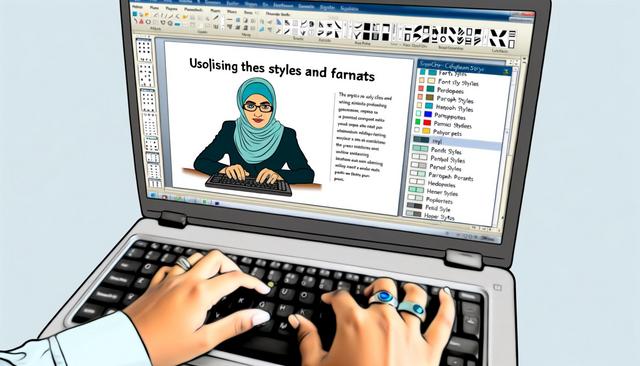
Comprehensive Guide on Using Advanced Styles and Formatting in LibreOffice Writer
LibreOffice Writer styles and formatting help you create clear, consistent and professional documents, whether for personal or professional projects. However, to fully harness its potential, mastering the use of advanced styles and formatting is essential. In this article, we will explore how you can transform your documents using these advanced features while optimizing your writing process.
Instead of formatting each title, paragraph or page manually, styles let you apply predefined formatting rules. This makes document creation easier to manage, especially when a file contains many sections, headings, lists, images, tables, headers or footers.
Understanding Styles in LibreOffice Writer
Styles in LibreOffice Writer are predefined format sets that you can apply to various elements of your document. They allow you to efficiently manage the appearance of your texts, headings, paragraphs, and more, while maintaining a consistent and professional look.
In practical use, a style works like a reusable formatting profile. Once a style is applied, the same visual rules can be used again wherever needed. This avoids repeated manual changes and helps keep the document structure clean.
Available Types of Styles
LibreOffice Writer offers several types of styles, each suited to different formatting needs:
-
Paragraph Styles: They manage the appearance of the text and its alignment, spacing between lines and paragraphs, as well as indentation management.
-
Character Styles: Ideal for individually formatting certain sections of text, such as italicizing a word or changing its color without affecting the entire paragraph.
-
Page Styles: Used to define margins, headers, and footers specific to different sections of your document.
- Frame and List Styles: For organizing elements such as images, tables, or structuring bulleted or numbered lists.
Each type of style affects a specific part of the document. This separation is useful because changing a paragraph style does not have to change a page layout, and changing a character style does not have to affect an entire paragraph.
| Style type | Main use in LibreOffice Writer |
|---|---|
| Paragraph Styles | Text alignment, spacing, indentation and paragraph appearance |
| Character Styles | Formatting selected words or text sections without changing the full paragraph |
| Page Styles | Margins, headers and footers for specific document sections |
| Frame and List Styles | Images, tables, bulleted lists and numbered lists |
Benefits of Using Styles
Using styles has several notable advantages:
-
Consistency: Ensures uniform formatting throughout the document, which is particularly useful for long documents.
-
Efficiency: Changing a style will instantly alter the formatting of all instances of that style in the document.
-
Simplicity: Makes it easier to adopt your organization or client's style guidelines.
These benefits are especially helpful when a document needs to follow a fixed layout. For example, headings can keep the same size, paragraphs can keep the same spacing, and page sections can keep the same headers and footers.
How to Apply Styles in LibreOffice Writer
Applying styles in LibreOffice Writer is straightforward. You can use the styles panel in the sidebar or the keyboard shortcut F11. This panel gives access to the main style categories and lets you apply them without manually changing every formatting option.
Applying a Paragraph Style
To apply a paragraph style, follow these simple steps:
- Select the paragraph you wish to format.
- Access the styles panel using the styles icon in the sidebar or by pressing
F11. - Click on the desired style type under the "Paragraph Styles" tab and double-click on the style to apply it.
Paragraph styles are useful for body text, headings, subheadings and other repeated text elements. Applying them early in the writing process can make later formatting changes simpler.
Creating and Modifying Custom Styles
If the predefined styles do not meet your needs, you can create or modify custom styles:
- Open the styles manager (
F11), then right-click in the styles list and select "New" to create a style. - Enter the name of your style and adjust the settings according to your preferences under each tab.
- To modify an existing style, right-click on the style and select "Modify" to adjust the settings.
Custom styles are useful when you need a specific format for a recurring element. For example, you can create a custom paragraph style for notes, a character style for highlighted terms, or a page style for a section with different margins.
Advanced Use of Styles and Formats
Advanced styles and formats in LibreOffice Writer help you manage larger and more structured documents. They are useful when the document contains multiple sections, repeated headings, page numbers, headers, footers or a table of contents.
Linked Styles and Inheritance
A powerful feature is the use of linked styles. This means a style can be based on another, thereby inheriting its properties. This saves time when you need to create similar formatting variations. To create a linked style, simply select a parent style when creating a new style.
For example, a heading variation can keep the same general structure as a parent heading style while changing only a few settings. This makes it easier to maintain related styles without rebuilding each one from the beginning.
Managing Headers and Footers
For professional documents, managing headers and footers is crucial. Use page styles to apply consistent headers and footers, and set dynamic page numbers or titles for better content organization.
Headers and footers can help readers identify the document section, follow page numbering, or keep repeated information in a fixed location. Page styles make this easier because they allow different sections to use different page formatting when needed.
Table of Contents Style
A well-formatted table of contents enhances the navigability of your document. Use styles to automatically create title entries and include clickable links to the corresponding sections.
For a table of contents to work well, headings should be formatted consistently with the correct styles. This helps LibreOffice Writer recognize the structure of the document and generate clearer entries.
Practical Uses for Document Creation
Styles and formatting in LibreOffice Writer can support many common writing tasks. They are useful for both short and long documents because they reduce repetitive formatting work.
- Personal documents: create clean letters, notes or reports with consistent paragraphs and headings.
- Professional documents: follow style guidelines for headings, spacing, headers and footers.
- Long documents: manage repeated sections, page styles and a table of contents more easily.
- Documents with lists or tables: keep visual structure clear by using list styles and frame styles where appropriate.
By using styles from the beginning, you can make later edits faster. If a heading color, spacing rule or indentation needs to change, modifying the style can update every matching element in the document.
FAQ
What are styles in LibreOffice Writer?
Styles in LibreOffice Writer are predefined format sets used to apply consistent formatting to text, headings, paragraphs, pages, lists, frames and other document elements.
How do I open the styles panel in LibreOffice Writer?
You can open the styles panel by using the styles icon in the sidebar or by pressing F11.
What is the difference between paragraph styles and character styles?
Paragraph styles affect the formatting of a full paragraph, including spacing, alignment and indentation. Character styles affect selected text, such as a word or phrase, without changing the full paragraph.
Can I create custom styles in LibreOffice Writer?
Yes. You can open the styles manager with F11, right-click in the styles list and select "New" to create a custom style. You can also modify an existing style by right-clicking it and selecting "Modify".
How do page styles help with headers and footers?
Page styles let you define margins, headers and footers for specific sections of a document. This helps keep page formatting consistent and makes it easier to manage page numbers or titles.
Conclusion
Mastering advanced styles and formats in LibreOffice Writer not only allows you to produce aesthetically pleasing documents but also improves efficiency and consistency. Take the time to familiarize yourself with these features, and you will see a significant improvement in the quality and management of your documents. Equipped with this know-how, you are now ready to make the most of LibreOffice Writer.
Whether you use paragraph styles, character styles, page styles, custom styles, headers, footers or a table of contents, these tools help you build documents that are easier to format, edit and navigate.
Download the latest version of LibreOffice

