Welcome to Download LibreOffice 06/27/2026 05:58pm

Free Tutorials For Libreoffice

Install and Configure LibreOffice on Linux Guide

Installing and Configuring LibreOffice on Linux: Complete Guide

How to Install and Configure LibreOffice on Linux: Complete Guide

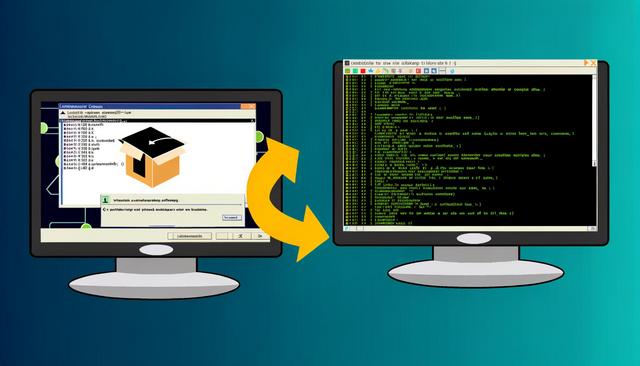
LibreOffice on Linux is a free and open-source office suite that provides a viable alternative to proprietary solutions like Microsoft Office. It is particularly popular among Linux users due to its compatibility and rich features. In this article, we will explore the detailed steps to install and configure LibreOffice on a Linux system.

This guide covers the main installation methods mentioned below: downloading packages from the official LibreOffice website, using .deb packages on Ubuntu and Debian, using .rpm packages on Fedora, and installing LibreOffice directly through a Linux package manager when it is available in your distribution repositories.
Optimize LibreOffice Documents for PDF Export

Exporting LibreOffice Documents to Optimized PDF

How to Export Your LibreOffice Documents to Optimized PDF Format

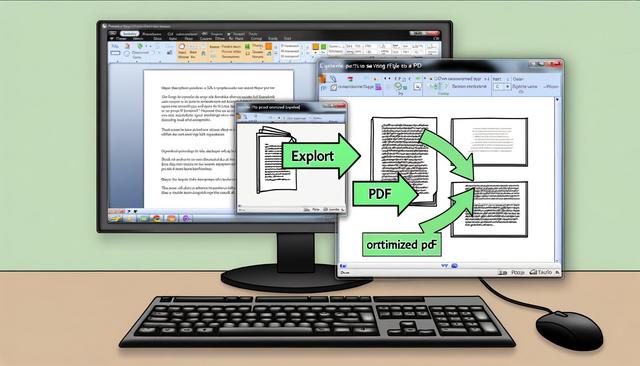
LibreOffice PDF export is a practical way to share office documents while preserving formatting, images, hyperlinks, and other embedded elements. LibreOffice is a widely used office suite appreciated for its free and open-source features. Exporting documents to PDF format is a common task that ensures compatibility and file security, regardless of the operating system used by the reader. For LibreOffice users, knowing how to optimize this export is crucial. Here is a comprehensive guide to maximize the efficiency and quality of your PDF documents.

Mastering Page Styles in LibreOffice Writer

Mastering Page Styles in LibreOffice Writer

Mastering the Creation and Use of Page Styles in LibreOffice Writer

Page styles in LibreOffice Writer help you control the layout of your documents with precision. The LibreOffice Writer office suite is a powerful and free tool that competes with paid counterparts like Microsoft Word. One of the fundamental aspects of leveraging LibreOffice Writer is understanding page styles. They allow you to give a professional and uniform appearance to your documents. In this article, we will explore how to effectively create and use page styles in LibreOffice Writer.

With page styles, you can manage elements such as margins, page orientation, headers, footers, and paper size from one central place. This is useful for reports, manuals, letters, academic documents, and any text document that needs clear and consistent formatting.

Enable Dark Mode in LibreOffice to Reduce Eye Strain

Activate Dark Mode in LibreOffice to Reduce Eye Strain

How to Use LibreOffice in Dark Mode to Reduce Eye Strain

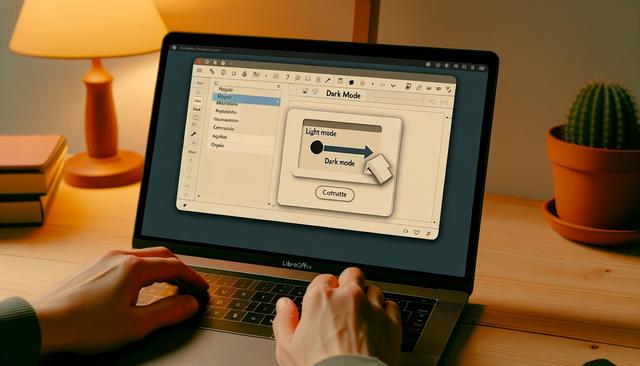
LibreOffice dark mode can help reduce eye strain for users who spend long hours reading, writing, editing spreadsheets, or preparing presentations on a computer screen. Eye strain is a common issue, especially for those who work for extended periods in front of bright interfaces. Fortunately, solutions are available to alleviate this discomfort, such as using dark mode in applications. LibreOffice, a popular office suite, now offers this feature. This article will guide you through the process of enabling dark mode in LibreOffice and explain how it can help reduce eye strain.

Dark mode changes the visual appearance of the LibreOffice interface. It can make menus, toolbars, and application areas easier to view in low-light environments. Combined with sensible screen brightness and regular breaks, it can contribute to a more comfortable working experience.

Essential Keyboard Shortcuts for LibreOffice

Essential Keyboard Shortcuts for LibreOffice

Top Keyboard Shortcuts to Save Time in LibreOffice

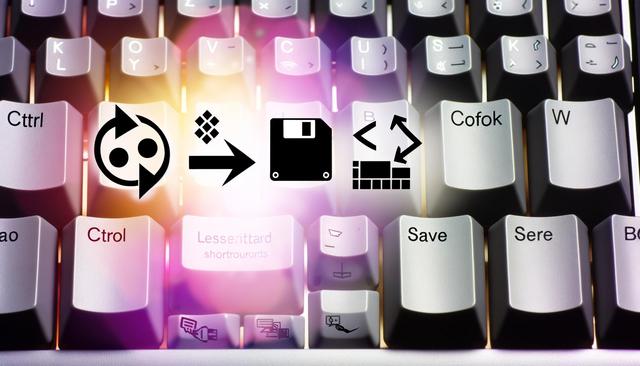
LibreOffice keyboard shortcuts help you work faster in this open-source office suite, whether you are writing documents in Writer or managing spreadsheets in Calc. LibreOffice provides an excellent alternative to proprietary software. Whether you're a beginner or an experienced user, mastering keyboard shortcuts can transform your experience and increase your productivity. In this article, we will explore the best keyboard shortcuts that will save you valuable time.